Databases
Use table, board, calendar, list, and gallery views, and row templates
A database turns a page into a collection of rows. Each row is its own page with properties, such as a status, a date, or a file. Databases arrived in Zyler 0.18.
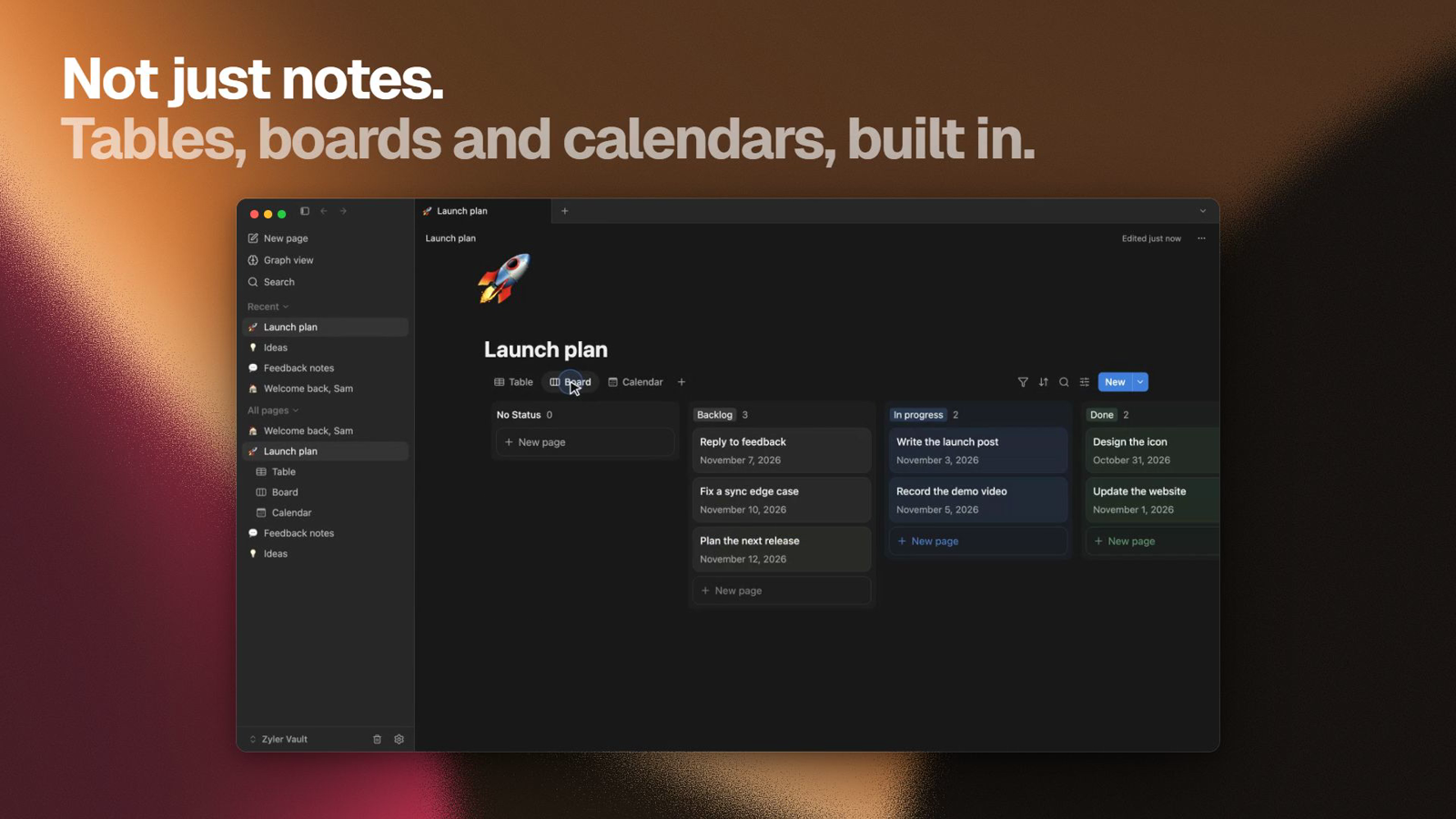
If you have used databases in Notion, the views, properties, and templates will feel familiar. See coming from Notion.
Create a database
On an empty page, under Get started with, choose Database for a table. The round … button beside it lists the other layouts. You can also embed a database view inside any other page.
Views
One database can have several views of the same rows:
| View | Good for |
|---|---|
| Table | Comparing properties across many rows |
| Board | Moving rows between columns, such as a status |
| Calendar | Rows with a date |
| List | A compact list of titles |
| Gallery | Rows with a cover or an image |
Each view has its own filter, sort, and grouping. Table views can show a calculation row under a column, such as a count or a sum.
Properties
A property is a column of values. Zyler supports text, numbers, select, multi-select, status, dates, files, checkboxes, links, email, phone, and created and edited times. Open a column's header menu and choose Edit property to rename it or change its settings.
A number can be shown as a bar or a ring, which suits progress and percentages.
Open a row
Open a row beside the table (Side peek), in the middle of the window (Center peek), or as a Full page. Choose which one in the peek's own menu.
Row templates
A row template is a saved starting page. When you add a row from a template, the new row begins with the template's properties and content.
- Next to the New button, open the arrow (More add options).
- Choose New template, then fill in the page that opens. A banner at the top tells you that you are editing a template rather than a row.
- Add rows from that list. Empty creates a row with nothing prefilled.
Each template has an actions menu with Set as default, Edit, Duplicate, and Delete. A default template is used by the New button. When you set one, Zyler asks whether it applies to every view of the database or only the current view.
For Markdown starting points that you import as ordinary pages, see the page templates.
Databases and other tools
Databases are part of the Zyler note format. Older versions of the app cannot open a vault that uses them, so update every device before opening it. Markdown export of a page does not carry a database's views, so use a whole-vault backup to keep one safe.